Sessions and Review
Run named parallel agent sessions, inspect changes, review diffs, create walkthroughs, and follow pull or merge requests.
A session is one agent conversation on a task. Use it to direct work, inspect changes, and give precise feedback before you merge or ship. Concurrent sessions share the same task environment, so give each writer explicit file ownership.
Quick path
- Start a session with a scoped prompt.
- Watch chat and tool activity; answer clarification or permission requests.
- Inspect the diff, run required checks, and send focused feedback until the change is ready.
Start a parallel session
You need a task with an environment and at least one agent profile compatible with that environment's executor.
On desktop:
- Open the task.
- Select + in a non-sidebar panel group.
- Select Agents > New Agent.
- Choose a compatible profile and enter the initial prompt.
- Choose its starting context.
- Select Start Agent. Kandev opens the new agent tab.
The New Session dialog does not accept a session name. Rename the session from its tab menu after it is created.
The empty-panel watermark has the same New Agent action. On mobile, open the Sessions picker and select New session.
The profile picker shows only profiles compatible with the task executor. If none are available, use the link in the dialog to configure an executor or agent profile. See Agents and profiles.
Choose starting context
| Option | What the new session receives | When to use it |
|---|---|---|
| Blank | Only the prompt you enter | Independent work that needs no earlier discussion |
| Copy initial prompt | Copies the first user message from the currently active session into the editable prompt field | A parallel approach; it is not guaranteed to be the task's original description, so inspect and edit it before launch |
| Summarize a session | Inserts a utility-agent summary of the selected conversation into the editable prompt field | Continue or branch from work already discussed |
Handoff from an existing session opens the same dialog and selects a summary of that session. Summarization requires a working summarize-session utility agent. Review generated summaries: they can omit constraints or decisions.
Prompts support pasted, dropped, or selected attachments. A prompt can contain at most 10 files, with a limit of 10 MiB per file and 20 MiB in total. The prompt itself is required.
Manage session state
Right-click an agent tab on desktop to manage it. Available actions depend on its current state.
| Action | Effect |
|---|---|
| Rename | Changes the session's display name |
| Set as Primary | Makes a stoppable session the task's primary target |
| Stop | Cancels the active agent turn for this session |
| Resume | Attempts to continue a completed, failed, or cancelled session |
| Delete | Permanently removes the conversation; if it was primary, another session is promoted when possible. The task workspace and its files are kept; a later session reuses them |
| Share | Opens the publishing preview for an eligible session |
| Handoff | Starts another session with a generated summary of this conversation |
| Close Others | Closes other visible agent panels without deleting their sessions |
Stopping is not deletion. Resume succeeds only while the executor still has the session record needed to continue. A removed worktree, expired remote environment, restarted executor, removed profile, or missing runtime record can force a fresh session instead. The failure banner offers Start fresh when continuation is unavailable.
Stopping a turn does not itself run the next queued message. If pending rows remain, Kandev sets their session's Auto-run switch to OFF. Expand the queue and turn Auto-run ON when you want FIFO processing to continue.
The expanded queue also lets you pause or discard stale work. Remove is available for every visible pending row, including messages from users, peer agents, workflows, and server actions; Clear all removes all visible pending rows in that session. Only user-origin rows remain editable. A message already reserved for delivery is hidden from the queue and cannot be cancelled with these controls.
Use Auto-run for normal queue motion. ON runs one eligible row per turn in FIFO order; OFF lets the current response finish and holds later rows. The setting belongs to the session and survives an empty queue, reload, and backend restart. A pending clarification or another lifecycle guard can leave the queue waiting while the switch remains ON.
Every row has Send Now for targeted priority. It sends that row directly when the session is promptable or replaces the captured active turn after backend cancellation acknowledgement. A successful Send Now turns Auto-run ON, runs the selected row first, then continues the remaining rows as separate FIFO turns without ordinary Cancel side effects. Clear all discards the visible queue. The chat toolbar's Cancel immediately stops the active turn, sends no queued prompt, parks any pending backlog with Auto-run OFF, and may complete an eligible workflow step or move the task to review.
A CLI-passthrough profile displays the agent's native terminal interface in a PTY. It still belongs to the task, but it does not provide Kandev's structured chat messages and tool-call presentation.
Let agents coordinate sessions
Let agents coordinate sessions
Task MCP gives an agent three session-coordination operations:
spawn_session_kandevstarts another session on the current task by default. It can select a profile and name, and can target another task in the same workspace. The new session shares the target task's environment; its supplied prompt is its initial context.message_task_kandevsends work to a task's primary session or to an explicit session ID. A same-task sibling must be addressed by session ID, and a session cannot message itself.stop_task_kandevasks the current task to halt all live sessions on one same-workspace direct child. It sends no prompt and has no session-specific option. A stopped session isCANCELLEDand cannot be resumed, sospawn_session_kandevis how the task is put back to work.
Delivery follows the target state:
- a running or starting session receives the message after its current turn;
- a waiting, idle, or completed session starts a new turn immediately;
- a created session starts with the message as its first prompt;
- a failed or cancelled session rejects the message.
Without an explicit session ID the message goes to the primary session, and falls back to the newest session that can still take a message when the primary is cancelled or failed. A session named explicitly is never redirected. When every session is terminal the call fails and names spawn_session_kandev.
The default pending-message limit is 10 per session. An admin can change it live under Settings > Task Behavior > Message Queue; 0 removes the cap. A valid KANDEV_QUEUE_MAX_PER_SESSION value takes precedence and makes only the capacity field read-only; changing the environment still requires a restart. Malformed environment values are logged and ignored, so the saved setting or default applies instead. Lowering the saved limit does not delete entries already waiting.
The same card enables Automatically merge consecutive messages by default. Once capacity admission succeeds, compatible consecutive messages from the same strict source fold into the earlier pending entry; incompatible messages remain separate. The earlier entry's ID survives, and only admissions after the setting is read are eligible. This behavior is independent from the manual Enable queued message merging switch. Interrupt delivery is restricted to a direct parent task messaging its child. Other senders must queue.
For urgent replacement work, the parent should use message_task_kandev with delivery_mode: "interrupt"; this cancels the current approach and immediately tries to dispatch the new prompt, with a safe queued fallback. Use stop_task_kandev only for halt-only intent. A successful stop marks every accepted live child session CANCELLED and schedules graceful teardown asynchronously. Kandev then attempts to move an eligible unarchived, non-Office task from IN_PROGRESS or SCHEDULING to REVIEW; other task states remain unchanged. A child with no live execution returns idempotent not_running, and its worktrees, environment, commits, task record, descendants, and queued messages are preserved. See Coordination for the complete authority and lifecycle contract.
Messages show peer attribution, and Kandev gives the receiving agent hidden reply instructions. The receiver can still decline the request. A full task UUID is sufficient for cross-workspace messaging, so treat task IDs as sensitive routing identifiers when untrusted agents share one deployment. See Coordination and Automation and MCP.
Use the workbench
Desktop panel groups can host agent chat, files, terminals, Changes, the task plan, previews, and GitHub pull-request detail. Use + to add a panel. Mobile exposes sessions, files, terminal, and changes through task navigation and sheets. Its task switcher opens as an inset bottom card, and the current-session control shows the active agent's icon and name.
Press Cmd+Shift+F on macOS or Ctrl+Shift+F elsewhere to search the contents of every file in the active task workspace. Results are grouped by repository and show the repository-relative path, line number, and matching line; selecting one opens that repository's file at the match. Content search includes tracked files and untracked files that are not ignored. Use Cmd/Ctrl+Shift+K when you want to search only file names and paths across all repositories in the active task. The palette keeps Commands, Files, and Contents visible as compact tabs beside the search field while an active task workbench is open; elsewhere the palette remains command-only and leaves the workspace-search shortcuts untouched. Click a mode or press Tab / Shift+Tab to switch without clearing your query or moving focus from the search field. File matches are grouped by repository. Hover a mode to see its direct shortcut.
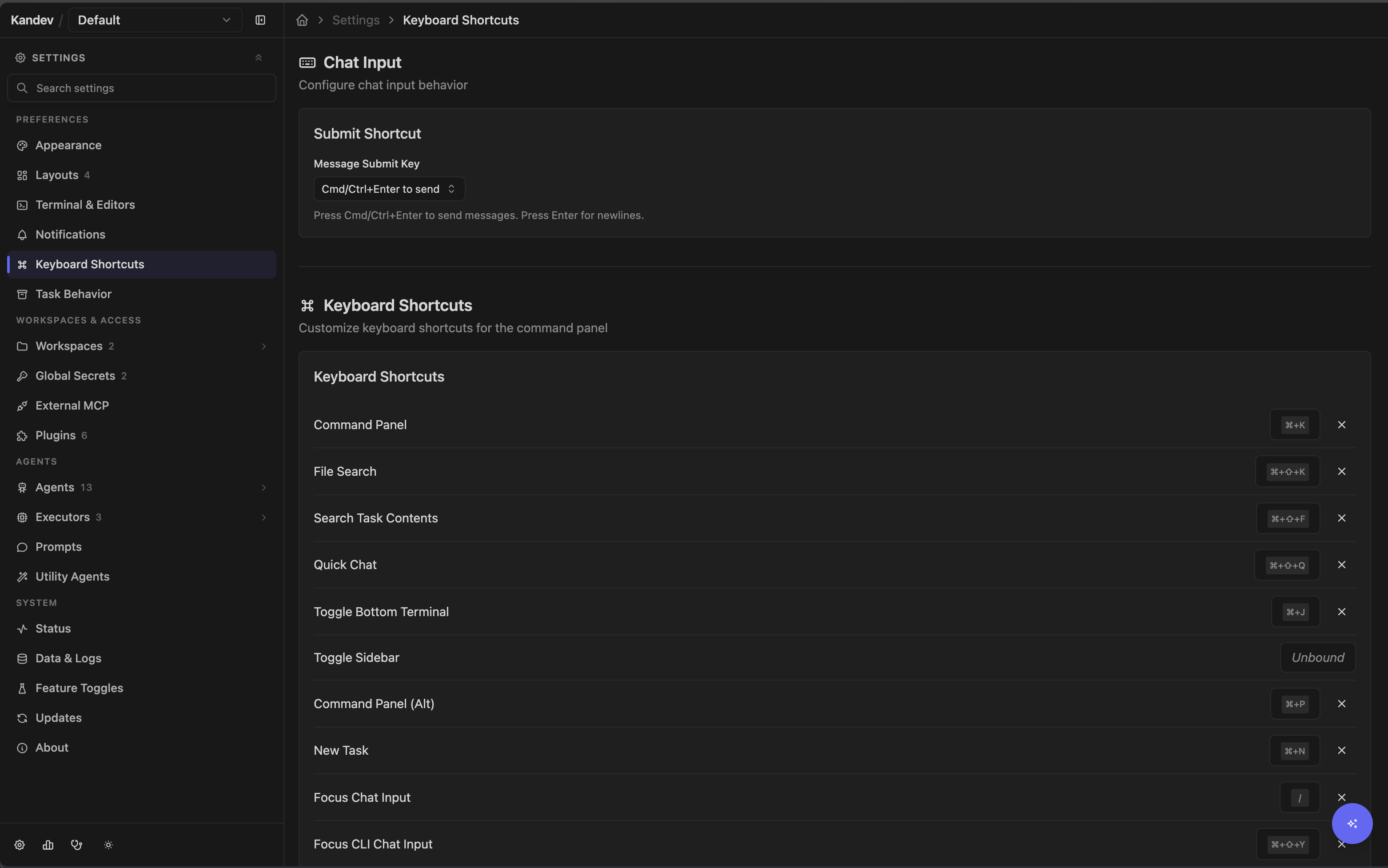
Open Settings > Preferences > Keyboard Shortcuts to customize these bindings.
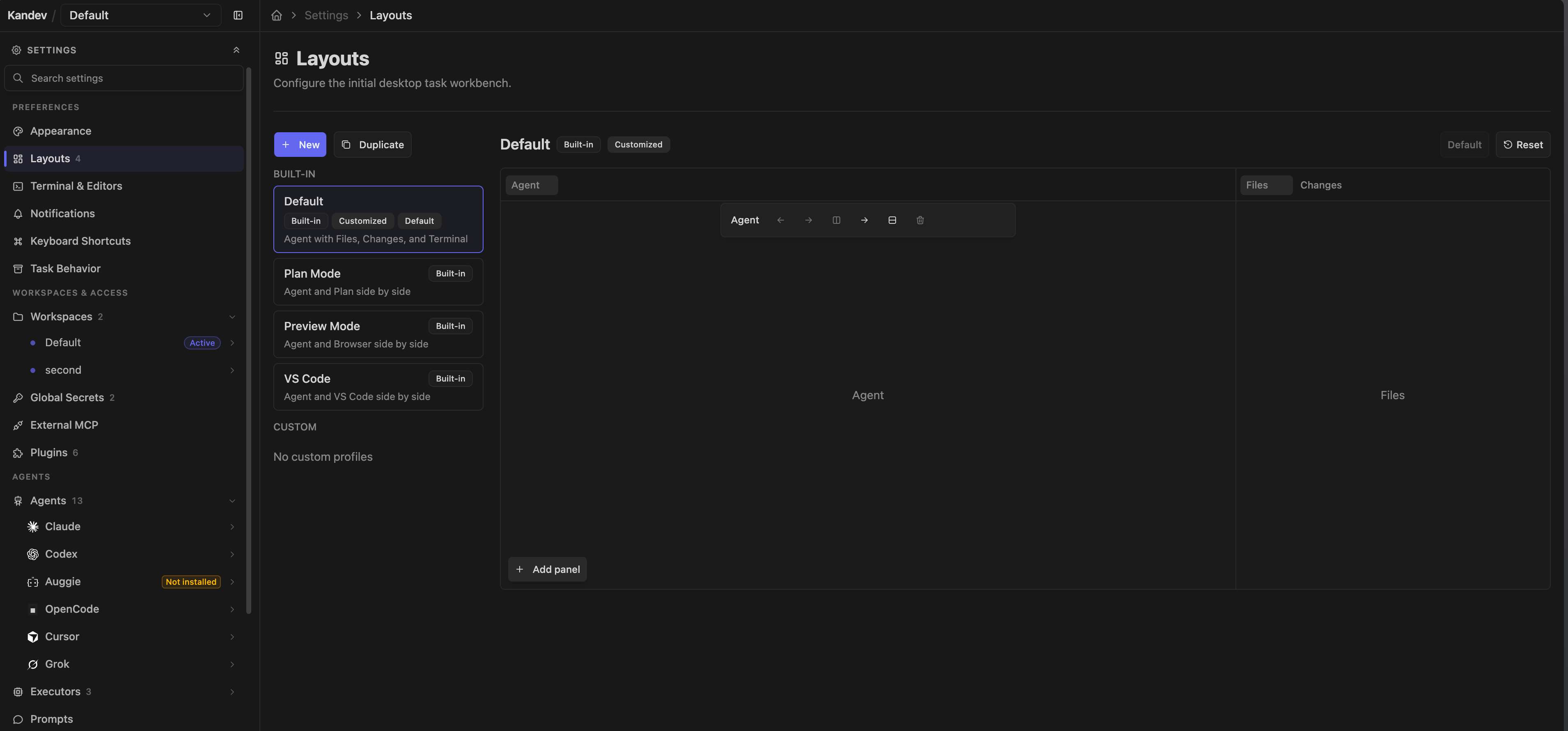
Open Settings > Preferences > Layouts to configure reusable desktop workbench profiles. Select a tab in a built-in layout to reveal its nearby edit controls, arrange or remove tabs and splits, then use the floating Save changes control. Kandev keeps the built-in row visible, marks it Customized, and stores your override without requiring a duplicate. Choose Reset beside a customized built-in to restore its original definition.
When you save a custom default, Kandev reapplies its split proportions to new and reset desktop tasks and scales them to the available workbench.
PR Details is a reusable Layouts panel whose visibility follows the active task's review association. Without a linked GitHub pull request or GitLab merge request, the tab stays hidden, even when the selected layout includes it. Once a review is linked, Kandev adds PR Details as an inactive tab: beside Agent for the built-in Default, or in the group and tab position you configured in the Layouts editor. Closing that tab prevents it from reappearing automatically in the same session. Changing the default applies to task environments without a saved task-specific layout and Reset Layout, not a layout already saved for a task. Removing Terminal from the Default layout also prevents Kandev from creating its initial user shell.
Each desktop split's + menu lists a linked review only while that exact review panel is missing from the live layout. Select a missing review there to open it in the split whose + you used. To move an open review to another split, drag its Dockview tab. Use Layouts only to change the default placement for new or reset task layouts.
All panels for a task point at the same task environment. In a multi-repository task, check the repository label before editing, committing, or reviewing. A preview also requires the application to listen on a reachable interface and expose a forwarded port.
When the repository defines a dev script, the desktop header shows a dev server control. Starting it runs the script in the task workspace, opens the browser preview, and opens a read-only Dev Server panel with the script's output. While the script runs, the same control becomes Stop dev server preview and terminates the process and its children. Kandev also stops a running dev script when its task is archived or deleted, so a preview cannot outlive the task that started it. A script that detaches itself from Kandev, for example by daemonizing or calling setsid, escapes that cleanup and must be stopped by hand.
Structured shell-command activity keeps the command, working directory, status, and output size in the chat row. Expand Output to fetch the transcript; Kandev continues refreshing an open, running command and stops when it reaches a terminal state. The disclosure separates standard output and errors, reports truncation and the exit code when known, and offers Retry when the transcript request fails. Historical command transcripts are loaded only when opened, which keeps long conversations responsive without discarding the stored output.
The ring in the chat-input toolbar shows the active session's context-window use when the agent reports a trustworthy window size. Open it to see used and total tokens; it focuses on the active session's context window. The hover also shows a session compaction count inferred from observed drops in used tokens. ACP does not report compaction events, so missing samples or provider resets can make the count approximate. For account-wide provider usage, install the Provider Usage plugin, which adds a provider pill to the session top bar and can add a compact display to the global status surface. That surface is off by default and follows the portable Show status bar preference under Settings > Preferences > Appearance > Status Bar; saving applies without a restart. The session top-bar pill remains available on its own when the preference is off. When it is on, the plugin can also appear in the desktop/tablet bottom bar or phone Status drawer. Configure the plugin under Settings > Plugins > Provider Usage. Kandev hides the context ring rather than presenting impossible data when reported use exceeds the reported window.
Inspect changes
Open + > Changes on desktop. A repository-less task has no Git state, so Kandev closes this panel automatically.
Changes are grouped by repository and then by state:
- PR Changes for the linked pull-request comparison;
- Unstaged working-tree changes;
- Staged changes selected for the next commit;
- Commits on the task branch.
From this panel you can stage or unstage files, discard working-tree changes, commit, amend, reset or revert commits, pull, rebase, merge, push, force-push, rename the task branch, choose a base branch, and create or open a pull request or merge request. Operations apply to the selected repository. Discarding a file is permanent, and history-changing operations can lose work or invalidate review; read Git operations before using them.
Changes-panel Git operations use Kandev's control path, not the agent's shell. They can work when a restricted agent mode blocks shell writes to Git metadata. If the error says that .git/index.lock already exists or is held, stop other Git operations and inspect the lock before retrying. Remove a stale lock only after you confirm that no Git process owns it. The Changes panel uses the same worktree, so it does not bypass an active lock. If the agent cannot create .git/index.lock because of its permission mode, use the Changes panel. Read Git operations before you change the agent mode.
For a linked fork pull request, the Changes header shows the exact comparison target, such as
upstream/widget:main. Kandev keeps this target separate from origin, the checked-out branch,
and the push remote. Desktop hover details and the mobile touch drawer show the same target.
If Kandev cannot materialize that exact target, the Changes panel shows a comparison warning and
hides numeric diff, commit, and ahead/behind totals. It does not use a same-named origin branch as
a substitute. Check the executor's Git access and refresh the session after the target becomes
available.
Open a file in its external repository
When Kandev has unambiguous repository context, file toolbars in Changes, Review, built-in viewers and editors, and their mobile layouts show Open file in GitHub, Open file in GitLab, or Open file in Azure DevOps. The action opens the provider page in a new browser tab. GitLab links support both gitlab.com and configured self-managed hosts.
The link uses the published source branch from a linked pull or merge request for that repository when available; otherwise it uses the task repository's base branch. Added or untracked files do not show the action until they exist on a published source branch. Deleted files open their base-branch version, while renamed files open the new path on a published source branch or the previous path on the base branch.
Kandev hides the action instead of guessing when a repository is local-only, unsupported, incompletely configured, or ambiguous. If a colleague cannot open the resulting page, check their permissions on the external repository; opening a link does not change provider access.
Review a diff
Select Review in the Changes header. Kandev builds a repository-aware file list by merging available uncommitted, cumulative committed, and linked-PR files. Initialized direct and nested Git submodules appear under their task-workspace scopes, so a submodule's README.md remains distinct from the parent repository's README.md. When a path occurs in more than one source within the same repository, the uncommitted version wins deduplication.
Review compares each submodule with the gitlink commit recorded by its parent and marks the submodule boundaries in the file hierarchy and diff headers. If a declared submodule is unavailable or uninitialized, Kandev keeps the parent's gitlink change visible instead of hiding the only available evidence. Pull requests for submodule repositories remain separate repository workflows; Review does not create or coordinate them.
When a task has multiple linked pull requests, use the PR selector in the Changes diff header or Review toolbar to inspect one PR revision at a time. The selection is scoped to that task for the current app session. Switching PRs replaces only the remote PR contribution; uncommitted and committed sources keep their normal precedence. Selecting a file from a specific PR row opens that exact PR revision, even when a sibling PR changes the same path.
When several pull requests are linked to a task, hover the PR control in the desktop top bar or tap the PR status chip on mobile to open the tabbed CI surface. Each PR tab has a Remove from task button. Removing a tab only detaches that Kandev task association; it does not close or modify the GitHub pull request, its branch or commits, the task repositories, or sibling PR associations. Explicitly linking that PR again restores the association.
An automatic-merge error shows Retry in the selected PR tab on desktop and mobile. This action requests one new evaluation for that pull request. Kandev applies all current readiness rules before it sends another merge request. Other automation and state-loading errors show Refresh. Refresh loads the current state and does not authorize a merge.
During review you can:
- filter files and switch between unified and split diffs;
- enable word wrap, copy a diff, expand unchanged lines, or preview Markdown;
- open a file in the workbench editor or an external editor;
- mark files reviewed;
- discard a file or revert a supported diff block after confirmation;
- attach a pending comment to a changed line.
Reviewed state is stored per session. Kandev also stores the diff hash: if the file changes after you review it, the file becomes stale and unreviewed. By default, manually scrolling past a file marks it reviewed; file-selection jumps in Review do not. Use the review toolbar to disable Auto-mark reviewed on scroll. Review does not embed walkthrough steps in its diff list; follow a saved walkthrough from its launcher and file editor.
Pending inline comments are scoped to the current review session but persist only in that browser's sessionStorage; they are not synced to the backend or another browser. Select Fix comments to send the accumulated file, line, source, and comment context to the agent and close the review dialog. If the agent is busy, normal session queuing applies. The UI clears pending comments immediately after starting the fire-and-forget send; if that request later fails, it shows an error but does not restore them. Copy important feedback before sending. Reopen the current diff before sending old feedback: a valid line number can still refer to different code after a rewrite.
Generate a walkthrough
Select Walkthrough from Changes or Review. Kandev sends the built-in changes-walkthrough prompt to the active session. If the agent is actively generating, the request queues; if it is idle, it starts a new turn immediately. A running Claude Code session that is only waiting on recognized background work also starts immediately when the high-risk Claude background prompt handoff experiment is enabled; the default behavior queues it. The agent must have task MCP and must call show_walkthrough_kandev with an ordered list of file and line anchors.
When the agent publishes the walkthrough:
- Open the fixed walkthrough launcher.
- Use Previous and Next to move through its steps.
- Kandev opens and highlights the referenced file range. On mobile, the explanation appears in a bottom sheet.
- Add feedback as pending context, or select Run to send that step's explanation, anchor, and your feedback to the active agent.
- Close the walkthrough to keep it, or select Discard and confirm to delete it.
A task stores one walkthrough. Publishing another replaces the current one. Kandev validates that each step has text, a file, and a positive line range, but it does not verify that the file exists or that the explanation matches current code. Anchors can drift as files change, and a PR-only file may be available only in the review diff. A walkthrough is an explanation, not test or review evidence.
Commit and open a change request
The commit dialog commits staged changes by default. Enter a title and optional body. Stage all changes before committing is off by default; enable it only after checking every unstaged file. Utility agents can propose commit text, but you remain responsible for the result.
The creation dialog requires a title, defaults it from the task title, accepts an optional body, and creates a draft by default. Kandev first runs git push --set-upstream origin HEAD, then selects the provider from the repository's origin:
- GitHub uses
gh pr createand requires an installed, authenticated GitHub CLI. - GitLab uses
glab mr createwhen available or the matching workspace connection's token through GitLab REST. It supportsgitlab.comand configured self-managed HTTPS or SSH remotes, resolves an omitted target from the project default, and attempts to link the resulting MR back to the task repository. - Azure Repos uses
az repos pr createand requires Azure CLI, theazure-devopsextension, and eitheraz loginorAZURE_DEVOPS_EXT_PAT. - Other Git hosts do not have a built-in creation path. Use that host's tooling from the terminal.
GitHub has the complete in-app PR review path. A linked PR detail panel shows checks, reviews, comments, conflicts, and merge readiness. It can add PR feedback to agent context, submit an approval when allowed, ask an agent to address conflicts, and merge using a method allowed by the repository. On an open PR, use the reviews list to re-request a reviewer whose review was dismissed. On a phone, open Review from the task bottom navigation to reach the same PR detail. GitHub permissions and repository policy remain authoritative; merge is enabled only when required checks, review state, and mergeability are ready.
GitLab has a provider-specific linked-MR panel. It shows overview and branch state, approvals and pipeline rollup, files, commits, reviewers, assignees, labels, and threaded discussions. It can add selected feedback to agent context, reply or resolve discussions, approve or unapprove, update people and labels, toggle MR notifications, merge, refresh, and unlink. GitLab permissions and project policy remain authoritative. See Integrations for linking and watch limits.
GitHub pull-request automation
GitHub PR automation
The PR panel has two action controls:
- Auto-fix CI and address comments waits for a check run to finish, then sends newly failed checks or review comments to the agent. It refreshes about once a minute, coalesces queued updates, and stops after 10 repair rounds for that PR. Disable and re-enable it after manual review to reset the limit.
- Auto-merge when ready merges only after CI, required reviews, and mergeability are all ready.
Open PR events for three notification controls:
- Your review is requested wakes the agent for any new request, including re-review after changes.
- PR merged and PR closed without merging independently wake the agent when review work ends.
Lifecycle messages only report the observed event and canonical PR URL; the task workflow and agent context decide what to do next. The repair prompt comes from the built-in ci-auto-fix saved prompt and can be overridden for the task. These controls currently operate on GitHub-linked PRs, require the GitHub integration and repository permissions, and do not bypass provider policy. Azure PR creation returns a URL but does not supply the same linked checks, review, or automation panel. See Integrations.
When a task has more than one linked PR, each PR's tab in the automation popover controls that PR only. Enabling auto-fix or a review notification for one linked PR does not turn it on for the task's other linked PRs. The saved auto-fix prompt override is the one exception: it applies to every linked PR.
GitLab MR automation
The GitLab MR topbar control has an Automation group with the same two action controls as GitHub's:
- Auto-fix CI and address comments sends the agent a new or changed failing pipeline job or unresolved discussion note once the pipeline settles, and stops after 10 repair rounds for that MR. Disable and re-enable it to reset the limit.
- Auto-merge when ready merges only after the pipeline passes, unresolved discussions are cleared, and GitLab's own merge-readiness check agrees.
Below that, open Review follow-up for the same three notification switches GitHub uses. Every switch above belongs to one merge request: a task with several linked MRs shows an Automation group per MR, each labelled with its MR number, and turning a switch on for one leaves the others alone.
- Your review is requested wakes the agent when the workspace's connected GitLab account is newly added as a reviewer on the MR. Staying assigned across MR updates does not re-fire it; being removed and re-added (for example, for a re-review after changes) does.
- MR merged and MR closed without merging independently wake the agent when review work ends.
Lifecycle messages only report the observed event and canonical MR URL, and Kandev delivers them through the same task-session queue as GitHub's. The repair prompt comes from the built-in mr-auto-fix saved prompt and can be overridden for the task. Hovering the MR control in the desktop top bar (a single linked MR only) opens a preview with the pipeline pass rate, approval status, and unresolved-discussion count without opening the dropdown; touch surfaces skip the preview and tap straight to the dropdown. A linked MR also shows a status badge on the task's Kanban card, next to any linked pull-request badge. See Integrations.
Confidentiality: redaction is heuristic, a secret Gist is accessible to anyone with its URL, and the snapshot is rendered through a third-party service. Inspect the preview and do not share material that must remain private.
Share a session externally
Share a session
For an eligible structured-chat session, right-click its tab and select Share. Sharing is disabled only while the session is CREATED or STARTING; RUNNING, IDLE, WAITING_FOR_INPUT, COMPLETED, FAILED, and CANCELLED sessions can be shared. A running snapshot can become stale immediately.
Kandev creates a preview, applies heuristic redaction, and publishes the snapshot as a secret GitHub Gist after you confirm. GitHub authentication with Gist permission is required. The maximum snapshot size is 10 MiB. The returned viewing URL uses gist.githack.com to render the Gist through a third-party, Cloudflare-backed CDN and shows an anti-phishing interstitial on first visit. Publishing therefore exposes the snapshot not only to anyone with the unlisted URL but also to that rendering service.
Inspect the full preview before publishing. Redaction covers common API-key patterns, environment-style secrets, command arguments, and absolute workspace paths, but it cannot recognize every credential or proprietary value. A secret Gist is unlisted, not access-controlled: anyone with the URL can view it. Do not share material that must remain confidential.
Use the same dialog to revoke a share. Revocation deletes the Gist and records it as revoked in Kandev.
Completion checklist
Before moving a task to done:
- Inspect unstaged, staged, committed, and PR changes for every repository.
- Check untracked files and confirm the branch and comparison base.
- Run the repository's required tests, lint, build, or validation commands in the task environment.
- Resolve or explicitly defer review comments and stale files.
- Review generated commit, PR, summary, and walkthrough text.
- Check linked CI and provider review requirements.
- Keep required human approval outside the agent loop.
Troubleshooting
- New Agent has no profiles: create a profile compatible with the task executor. A profile for another executor is intentionally hidden.
- Summary or generated text fails: configure the corresponding utility agent with an enabled ACP profile in Settings > Utility Agents. Repair any stale or disabled profile binding before retrying.
- Resume fails: start fresh when the executor no longer has resumable session state, then supply a summary or copy the relevant context.
- A peer message never arrives: check the target session state and ID. Running sessions queue messages; failed or cancelled sessions reject them. Expand the queue chip and check Auto-run: turn it ON for normal FIFO processing, use a row's Send Now for targeted priority, or remove stale work. For a full queue, remove or clear pending rows before retrying; an admin can also review the install-wide limit under Settings > Task Behavior > Message Queue.
- Changes is empty: select the correct repository and comparison, then confirm the agent wrote inside the materialized task path.
- Review marks became stale: the underlying diff changed. Re-review the new hash before marking the file complete.
- Walkthrough does not appear: confirm an active task-MCP session exists and that the saved
changes-walkthroughprompt was not removed or made invalid. - PR creation fails before opening a PR: fix push authentication, install or authenticate the provider CLI, and verify the remote host is supported.
- GitHub automation does nothing: confirm the PR is linked, automation is enabled, a session is available, checks have finished, and the 10-round cap has not been reached.
- Share is unavailable: wait until the session leaves
CREATED/STARTINGand configure GitHub Gist access. CLI-passthrough conversations do not have the structured snapshot used by this feature.
Related: Use Kandev, Tasks and workflows, Coordination, and Developer tools.